Today I came across an How-to video on SharePoint 2010 Word Automation Services. In the session the host was giving a demo on how to convert a word document to PDF, which was added\uploaded to a document library. The demo utilizes Event Receiver to get this done. You can view the complete video here on Bing videos.
Saturday, June 25, 2011


Open Source Video Players for Web
Longtime back a requirement came up, where I had to integrate video playback functionality in a webpage. The requirements specifically mentioned that it should be platform agnostic. Initially I thought of using Silverlight to get this done; but the downside of using Silverlight was that, it wasn't supporting Linux platform which breaks platform agnostic requirement.
After some search I ended up with a handful of options which included Flash player and HTML5 Video Playback as well. Fortunately the video formats which I had to handle were all MPEG-4, which was supported by most popular web video players including Silverlight, Flash and HTML5. Finally I decided to go for an hybrid solution which works based on the following logic.
If the browser supports HTML5 then the "Video" tag was used to playback the video, If not use Adobe Flash player, else use the Silverlight. If the browser didn't support any of those, the user is alerted to upgrade to a latest browser version or to install any of the supported players.
Here are some of the video players I came to stumble upon while working on this requirement.
Open Video Player - A fully open source video player and the best player I had ever seen and the best part is that its freeware. The player comes with a pretty good number of options for you to choose from, like HTML 5 Video, Silverlight, Flash and iOS (Apple platform).
Flow Player - An Open source video player based on Adobe Flash. A free version is available under the GPL license. The free version even allows commercial use at the time of writing. The only downside is that, it displays their branding logo at the beginning of video playback, which isn't that obstructive to the viewer. If you are concerned about the branding logo at start of every clip, then there's a commercial version as well which is free from all these. Moreover the commercial version allows you to put your own branding logo in there.
JW Player - An open Source video player based on Adobe Flash. Display's branding text on to the left bottom side at the beginning of the video, after a while it disappears. The Pro version has even lot many options but will cost you some bucks. The restricting factor is the licensing terms on using the player on commercial sites.
Thursday, June 23, 2011
Avoid Caching Issues While Development
Browser caching can become a nightmare when developing web applications, as most of the changes what we make in the code may not get reflected at the browser end, which might end up missing the set time frame for that specific task; the reason being caching of contents at the browser level or at the proxy level.
The problem with browser caching can be sorted out through use of a new feature built-in to modern browsers known "InPrivate Browsing" (in IE) and "Incognito window" (in Chrome). The feature presents you with a session (a new window) which is completely free from all sorts of saved cookie info and content cache. The beauty of this mode is that, what ever browsing you do here wont even leave a trace of those activities in the browser history nor in the cookie container or in the browser cache.
If you had done Ribbon UI development in SharePoint 2010 before, then definitely you must have faced the dilemma of caching, as what ever changes you made to the Ribbon bar won't get reflected at the browser end as the XML required to render the Ribbon UI is cached. Myself being faced with the dilemma of caching with other development tasks and now in SharePoint, I had decided to go for the aforesaid "Isolated Mode" (as I wish to call it) as its going to eliminate the issues associated with web browser caching.
So next time don't forget to utilize this pretty cool feature packaged with almost all browsers available out there in the net.
Wednesday, June 22, 2011
Installing SharePoint 2010 on Window 7 64-bit
With the release of SharePoint 2010 the good news is that, for development one can develop SharePoint solutions on a Client OS like Windows 7 (64-bit) instead of using a Server OS like Windows Server 2008 (64-bit). With this corporations can save on licensing costs by tapping in existing investments made for client operating systems like Windows 7 or Windows Vista. But this was not the case with SharePoint 2007, which required a server OS like Windows Server 2003 to get it running even for development, though there were some hacks to get MOSS running on a client OS like vista, it wasn't adopted by the development community at large, because of fear of issues\conflicts which might crop up at a later time.
Hearing this I tried to get SP 2010 installed on to my Windows 7 which failed in the first step itself, so if you are among the many developers or System Admin's who received the following error "Setup is unable to proceed due to the following error(s): This product requires Windows Server 2008 Service Pack 2 or above. Correct the issue(s) listed above and re-run setup." while trying to install SharePoint 2010 on Windows 7 (64-bit), then here's an elegant solution by Sandrino Di Mattia, who had posted an excellent article on how to tide over this error.
The reason behind this error is due to the fact that, SharePoint 2010 on production environments is always supposed to be run on Windows Server 2008 (64-bit).
The reason behind this error is due to the fact that, SharePoint 2010 on production environments is always supposed to be run on Windows Server 2008 (64-bit).
Monday, June 20, 2011
Nexus between State Service and Chart Web Part in SharePoint 2010
While trying to display a simple bar chart in SharePoint 2010 from data contained in a Sales list, I ended up with the following error "The chart cannot be rendered. This may be due to a misconfiguration of the Microsoft SharePoint Server State Service. For more information, contact your server administrator."
If you are new to charts in SharePoint 2010 then no need to concern, as much of the overhead of is taken care of by SharePoint itself. For the developer its all about adding a "Chart Web Part" to a page and assigning properties like linking to data source, selecting the chart of your choice and setting the appropriate titles and legends, that's it. Once you are done with all those properties, you will see the chart beautifully rendered on your page. The only drawback I came to find with inbuilt charts are that they aren't that interactive when compared with a Silverlight charts, where with the later one could rotate, drill down, click certain portions to view more details and moreover a some rich 3D rendering like that. The built-in SharePoint Chart fits the bill for most usual business requirements.
Searching for the Service:
So coming back to the error which I was talking about. From the error message what I could infer was that "SharePoint State Service" wasn't available or running. I started to lookup for this service under Windows Services (services.msc) but didn't find any. Next I moved on to "SharePoint Central Admin" where I navigated to "Application Management -> Manage Service Applications" there too the service wasn't listed. So seems like the service wasn't installed during farm configuration phase.
Solution:
Now we are going to install the "State Service" (which itself is a Service Application in SP2010).
- For this navigate to "SharePoint Central Admin -> Configuration Wizards -> Launch the Farm Configuration Wizard -> Click 'Start the Wizard' ". In next screen uncheck all the services except "State Service" (Note: Before unchecking other services, make sure you are not using any of those services in your project(s). Leaving every services checked, will make your SharePoint server crawl, running all of these services in a single server will consume more CPU cycles and memory. Normally in a production environment, each of these services will be running in different servers so as to offload the overhead from the WFE(Web Front End) SharePoint server.)
- Click OK and browse back to Central Admin (no need to continue with a new site creation).
- In the Central Admin page select "System Settings -> Manage Services on this Server" and search for the Service Application with named "State Service" and click the "Next" button , after which the status should be shown as "Started".
This error will show up not only for charts, but also when trying to publish a page in SharePoint 2010. So going back to the page where I had placed the Chart Web Part. Hurray the chart was rendered as expected without any errors.
Breeze through SQL Server Management Studio
If you are among the many developers who frequently use SQL Server Management Studio for tasks like writing Stored Proc's, complex queries, views etc, then definitely you will find yourself writing SELECT statements to get a view of data inside tables and views. The next possible statement you might frequently use should be the sp_helptext to view definitions of user-defined rules, unencrypted Transact-SQL stored procedures, user-defined Transact-SQL functions, triggers, computed columns, CHECK constraints, views etc.
A small analysis on the count of SELECT or sp_helptext statements issued to view the data or the schema of an Stored Proc\View. I came to find that on an average it was around 30 plus. I got this from SQL Profiler after excluding those statements issued from my application. Before I came to find a solution for this, I kept a copy of frequently used functions so as to copy and paste whenever I need any of those, that's how I was doing before embracing this cool elegant solution.
I would call myself a lazy programmer, yes you read it right "A lazy programmer, but definitely not a lousy one". Being lazy, I always wanted to get more from little. So from a developer point of view this means, more productivity\output from less keystrokes and writing scripts for those little repetitive tasks like changing IE proxy, Hibernating\Shutting down windows, enabling USB ports (hope you know where this specifically applies to), Recovering crashed desktops and the list goes on and on.
I would call myself a lazy programmer, yes you read it right "A lazy programmer, but definitely not a lousy one". Being lazy, I always wanted to get more from little. So from a developer point of view this means, more productivity\output from less keystrokes and writing scripts for those little repetitive tasks like changing IE proxy, Hibernating\Shutting down windows, enabling USB ports (hope you know where this specifically applies to), Recovering crashed desktops and the list goes on and on.
Here I am going to pull yourself into my lazy programmer band wagon(i.e. more productivity from less keystrokes) while working with SQL Server Management Studio. Before moving on, have you ever used the shortcut "Alt + F1" to view metadata for the selected table name? If yes, you had knowingly or unknowingly used the feature on what we are about to explore.
The solutions I am about to show you are in-built to the editor, so no need to worry about shelling out your hard earned money nor impress your manager for getting budget allocation to get those new tools. Here you will see a pretty awesome feature called "Keyboard shortcuts" built-in with SQL Server Management studio to get this done. So lets move on to the solution part.
The solutions I am about to show you are in-built to the editor, so no need to worry about shelling out your hard earned money nor impress your manager for getting budget allocation to get those new tools. Here you will see a pretty awesome feature called "Keyboard shortcuts" built-in with SQL Server Management studio to get this done. So lets move on to the solution part.
Fire up your "SQL Server Management Studio" and select "Tools -> Options" from the menu.

In the "Options" widow select Environment then select "Keyboard" which should get you to a screen something like the one below(BTW I am using SQL Server 2008 R2). Here you could find three predefined shortcuts already assigned for the key combinations like Alt+F1, Ctrl+1 and Ctrl+2 this means all those three shortcuts are already taken out by MSFT guys, but we still have a lot many key combinations left out there with ready to occupy boards hanging all over them (that means, those shortcuts with no text in the second column).

Lets start filling up those unoccupied slots with our own set of SQL arsenals. To get the job done, you need to copy the statements(highlighted in green) excluding the quotes to the second column (named Stored Procedure).
Ctrl + 3 'SELECT * FROM ' (make sure there's a single space after the FROM keyword and no quotes before and after)
Ctrl + 4 'sp_helptext ' (make sure there's a single space after the FROM keyword and no quotes before and after)
Ctrl + 3 'SELECT * FROM ' (make sure there's a single space after the FROM keyword and no quotes before and after)
Ctrl + 4 'sp_helptext ' (make sure there's a single space after the FROM keyword and no quotes before and after)
Click "OK" button and exit the editor.
Now its time to see those new shortcuts in action.
Now its time to see those new shortcuts in action.
- Fire up the SQL Server Mgmt Studio and open a new query window.
- In the toolbar change to the database of your choice.
- Key in a table name to the query window and select(highlight by selecting the table name) the table name you had just entered.
- Press the key combination Ctrl + 3 and you should see all the records in that table getting listed in the results window. If any errors are there make sure you had put a space after the "FROM" keyword and no quotes before and after while entering in the keyboard shortcuts window.
- So we had successfully saved ourselves from repeatedly typing "SELECT * FROM" each time to view records inside a table.
- Next we will try out the other key combination Ctrl + 4. For this enter a stored proc name to the query window and select the SP name and press Ctrl + 4. You should be seeing the body of the SP, i.e SP definition including parameters and all the t-sql code contained in the SP. In case if the output is displayed in a datagrid(which is the default behavior), you can switch to text view by pressing Ctrl + T and re-issuing the Ctrl+4 shortcut. This time you should be seeing the output like in a text editor. To switch back to grid view press Ctrl +D
So I am leaving out the other shortcuts for you to fill in with the most common statements of your choice. So next time onwards the new keyboard shortcuts should do all the magic for you without the need to keyin SELECT or sp_helptext statements and also start getting used to the Lazy Programmer experience.
Tuesday, June 14, 2011
Things To Look Out For While Developing SharePoint 2010 Server Applications
As part of mastering SharePoint Server 2010, I was trying out a simple console application which utilize's SharePoint Server side API's to communicate with SharePoint Server 2010. The console application which I was developing was programmed to fetch all the Lists in a given site collection and display their names(Titles), a pretty simple app.
For this I created a new console application in VS.NET 2010 by selecting ".NET Framework 3.5" from the drop down located in "New Project" window.
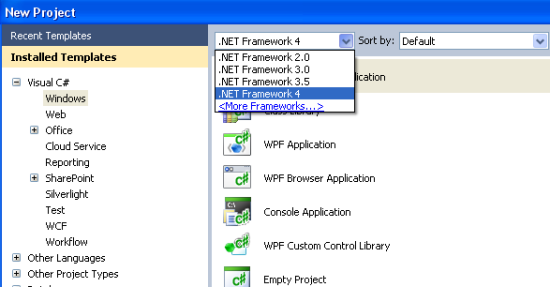
After which I added a reference to "Microsoft.Sharepoint.dll", which can be found under ".NET" tab of "Add Reference" window(to get here right-clicking "References" folder in solution explorer and select 'Add Reference' from the context menu).
Thereafter I updated the "Main" method with the following code, which does fetch all the SharePoint Lists in the default site collection available under "http://SP2010" (this URL refers to my default SharePoint site collection on my machine)
string SiteURL = "http://sp2010";

using (SPSite myspsitecollection = new SPSite(SiteURL))
{
  using (SPWeb mySPSite = myspsitecollection.RootWeb)
  {
    Console.WriteLine(mySPSite.Title);
    foreach (SPList list in mySPSite.Lists)
    {
       Console.WriteLine(list.Title);
    }
  }
}
The compilation went well without any glitches. The moment I ran this application, I got an error message stating that, the console app couldn't find the site. The exact error message was "The Web application at http://sp2010 could not be found. Verify that you have typed the URL correctly. If the URL should be serving existing content, the system administrator may need to add a new request URL mapping to the intended application".
I was wondering why on earth my console application can't find this site. At the same time all other apps like SharePoint Designer and SM2 (SharePoint Manager 2, a third party utility) all of which were able to successfully connect to my site from the same machine. It was really embarrassing situation trying to troubleshoot like, why only my application wasn't able to establish the link. To get my console app on track, I tried disabling the firewall and IDS, rechecked the code, installed Fiddler to monitor the requests to the web server etc, but nothing turned out to be providing hint of any sort to the root cause of this scary bug. As last resort I thought of searching for this error on the internet. After going through a couple of links, I came to hit the bulls-eye, finally got the culprit.
Solution:
The error was because of a default setting in VS.NET 2010. Whenever you create a new project in VS.NET 2010 the project by default sets the "Target Platform" to x86. So if you are developing Sharepoint Server side solutions, always make sure that you set the "Platform Target" value to "x64", else you will be getting weird errors, like the one I got. After updating my console applications "Platform Target" to x64 things went smoothly as expected, listing out the titles of all the Lists in the given SharePoint site collection.

So to summarize; while developing server side apps for SharePoint 2010 make sure you follow these steps without fail.
- Always select ".NET Framework 3.5" from the drop down while creating new project. This applies to both Server Site app and Client side apps.
- Update the "Platform Target" value to x64, as SharePoint 2010 is 64-bit product.
- Refer "Microsoft.SharePoint.dll"
- Make sure you are able to connect to the Sharepoint site by specifying the url in Sharepoint Designer. If not make sure that no firewall policies are preventing you from connecting to sharepoint server.
- Your application will be running under the same login credentials with which you had logged into the system.
Happy SharePoint development.
Subscribe to:
Posts (Atom)